Why Revocal asks for permissions
Revocal for iPhone and Android · Last updated 3 October 2026
Revocal asks for nothing when you first open it. Each permission is asked for the first time you use the part of the app that needs it, and never before. This page explains every one of them: what it is for, when you will see the question, what happens to anything it touches, and what still works if you say no.
The short version
- Your recordings are made, reversed and kept on your phone. They are not uploaded to us and we cannot see or hear them.
- A recording only leaves your phone when you send it, save it or share it.
- Revocal never asks for your contacts, your location or your whole photo library, and it does not track you across other apps.
- You can change any permission at any time: in the app under Profile › Permissions, or in your phone's Settings.
Microphone
- What it is for
- Recording your voice so Revocal can play it backwards, spell out the reversed words for you to copy, and score how close your try was. Every audio challenge, every 1 on 1 round and every ReverseAU take starts with the microphone.
- When we ask
- The first time you tap record.
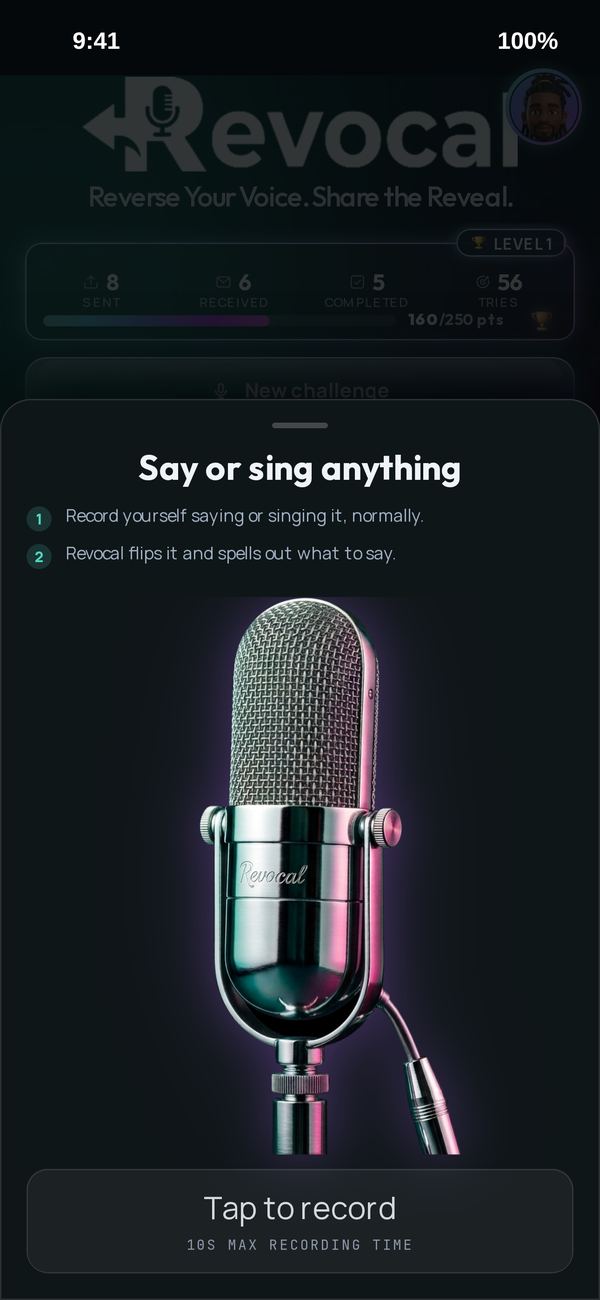 Tap to record. This is the moment your phone asks, and only once.
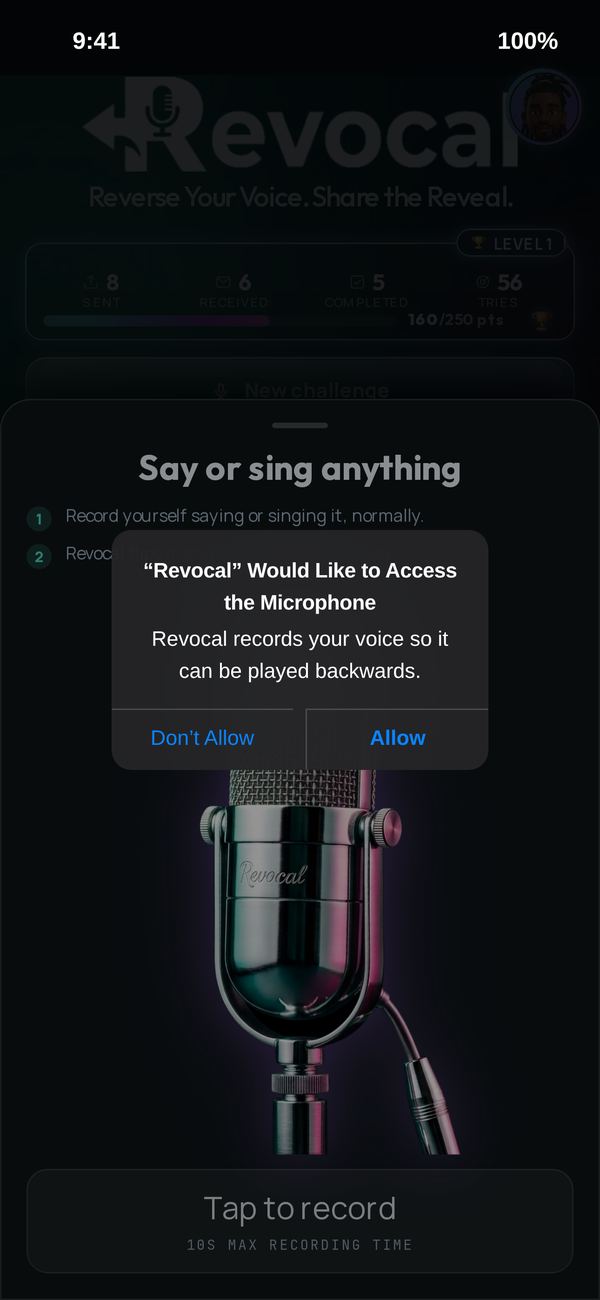 Tap Allow and you can record. Your voice stays on your phone.
- What happens to the sound
- It is recorded into Revocal's own storage on your phone and processed there. Nothing is streamed or uploaded. The microphone is only on while you are recording, and your phone shows its own indicator whenever it is.
- If you say no
- Revocal cannot record you, so recording, challenges and 1 on 1 will not work. Watching challenges friends sent you still works.
Speech recognitioniPhone
- What it is for
- Turning what you said into words, so Revocal can show the line you are reversing, spell out how it sounds backwards, and put subtitles on reversed videos.
- When we ask
- Straight after the microphone, the first time you record.
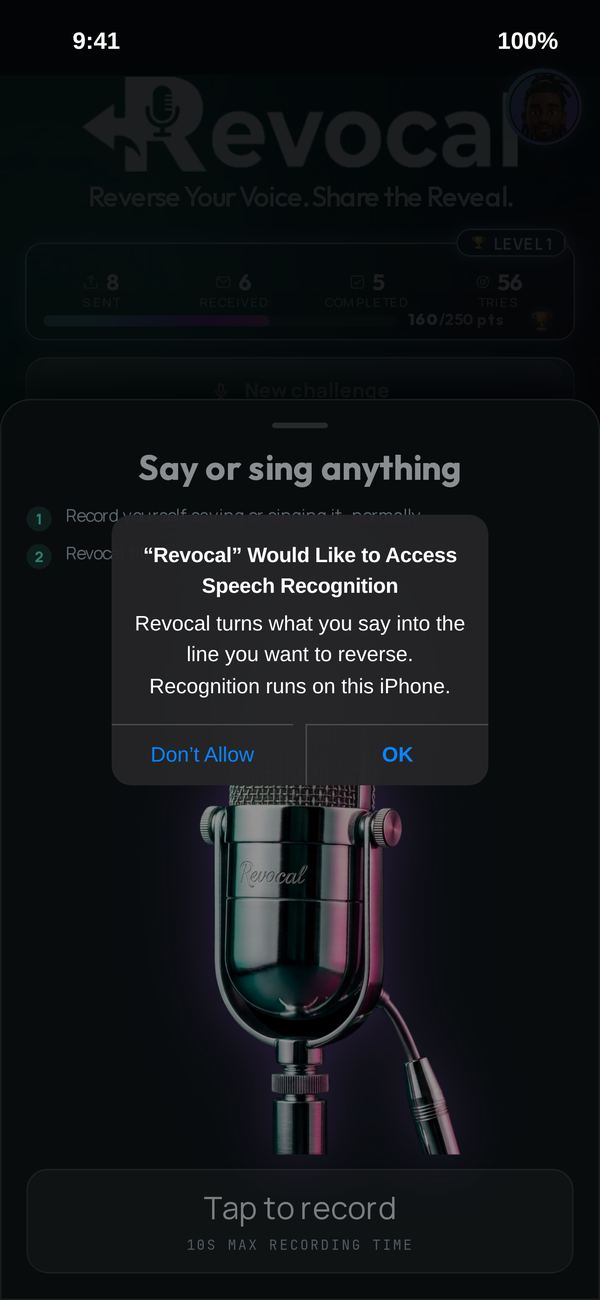 This turns your words into the backwards spelling, right on your iPhone.
- What happens to the words
- Revocal uses Apple's speech recognition on your iPhone and asks for the on-device version, which does not send your audio to Apple. The words stay on your phone with the recording.
- If you say no
- On iPhone, recording will not work without it, because the reversed words are worked out from it. On Android there is nothing to allow: the speech model is built into the app.
Camera
- What it is for
- Filming your video takes for ReverseVid and video challenges, so the picture can be reversed along with your voice.
- When we ask
- The first time you open the camera to film.
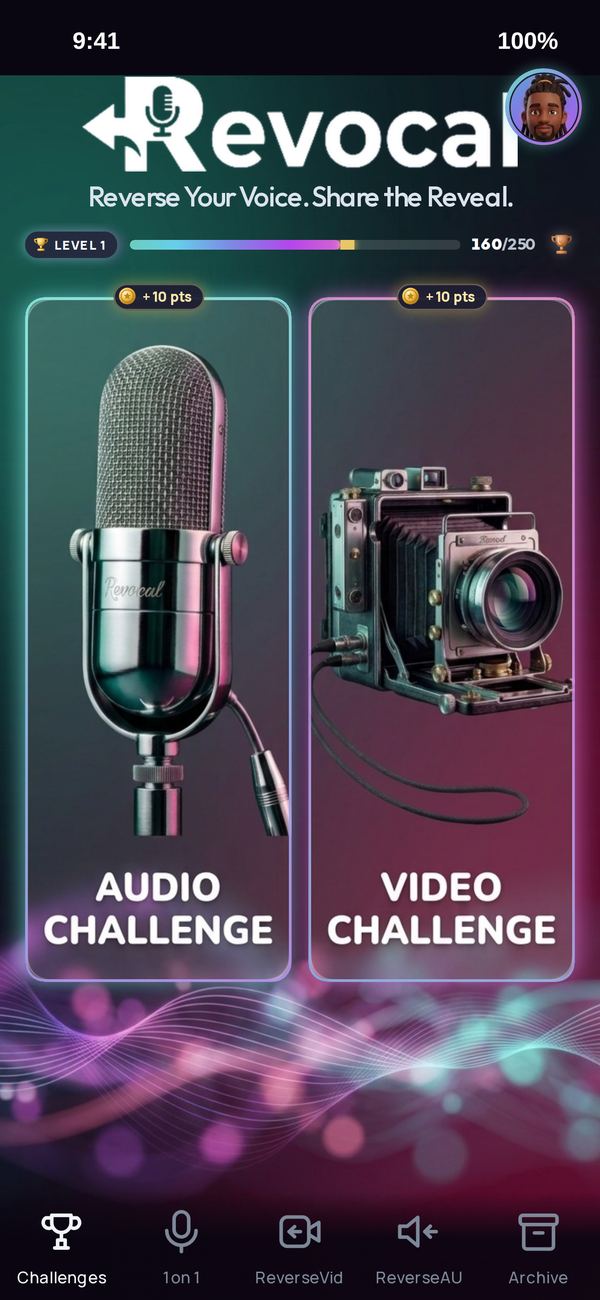 Pick Video and start filming. Only then is the camera asked for.
- What happens to the video
- It is filmed into Revocal's own storage on your phone and reversed there. It is not uploaded. The camera is only on while the camera screen is open.
- If you say no
- Video recording will not work. Everything that only uses sound carries on.
Save to PhotosiPhone
- What it is for
- Putting a reverse video into your Photos when you choose Save Video in the iPhone share sheet.
- When we ask
- The first time you choose Save Video there. Nothing else in Revocal asks for it.
- What it can and cannot do
- This is add-only access. Revocal can add the video you saved and nothing else. It cannot see, read or delete anything already in your Photos.
- If you say no
- Saving to Photos will not work. You can still share a video straight to another app. On Android saving needs no permission.
Notifications
- What it is for
- Telling you when a friend opens or answers a challenge you sent them. Nothing else: no adverts, no reminders to come back.
- When we ask
- After you send your first challenge.
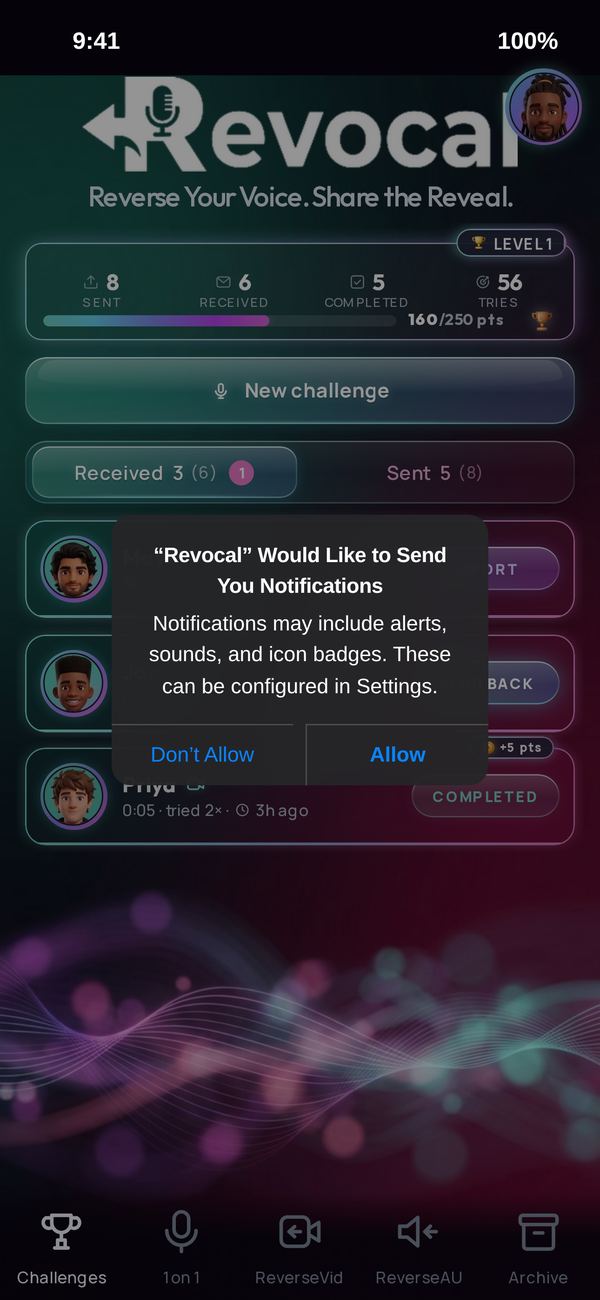 Asked once your first challenge is out, so you hear when a friend answers.
- What we keep
- To send them, our server keeps your phone's notification address together with a random identifier made on your phone. No name, no phone number, no email address.
- If you say no
- You will not get those alerts. The Challenges tab still shows who opened and answered when you open the app.
Send nearbyLocal network
- What it is for
- Sending a challenge straight to a friend's phone when you are standing next to each other, without a messaging app.
- When we ask
- Only when you switch on Send nearby under Profile › Permissions. It is off until you do.
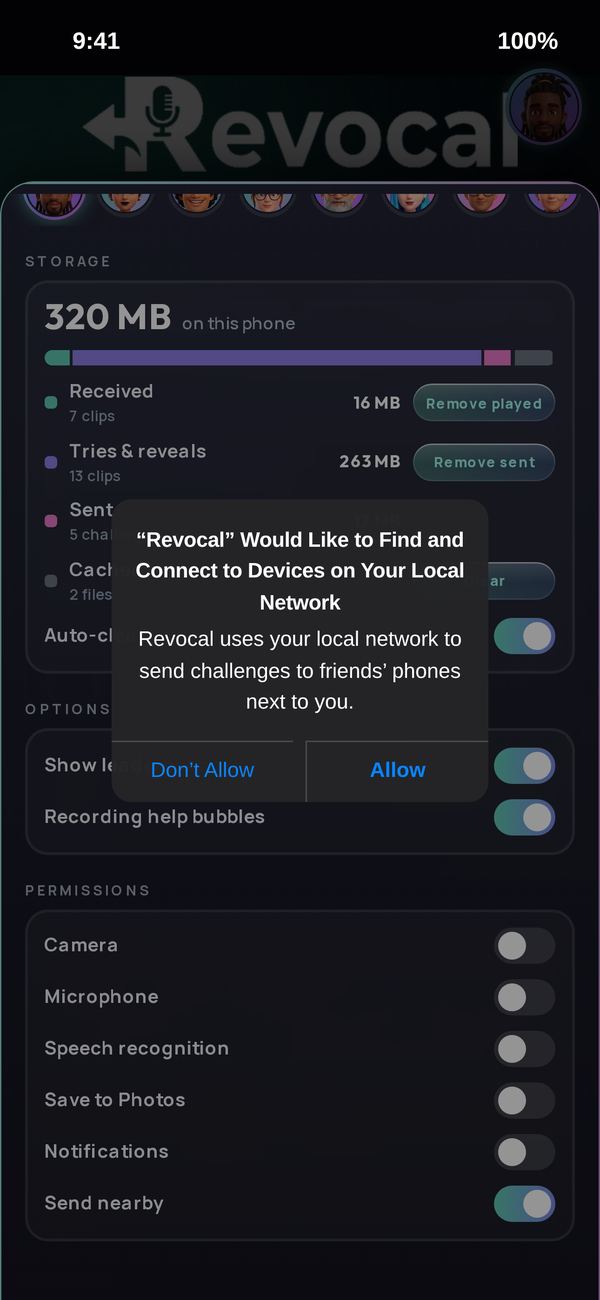 You switched Send nearby on, so now your phone asks. Not before.
- What happens
- While it is on and Revocal is open, your phone shows your Revocal name and avatar to other Revocal phones close by, and looks for theirs. A challenge goes straight from one phone to the other and only after your friend taps Accept. It does not go through the internet or through us. On Android both phones need to be on the same Wi-Fi.
- If you say no
- Send nearby will not work. Sending challenges through Messages, WhatsApp or any other app works exactly as before.
Checked by Apple and Google
Revocal is not on your phone without anyone looking at it first. Every version goes through Apple's App Review and Google Play's review before it can be downloaded, and both hold apps to strict privacy rules:
- An app has to say in plain words why it wants each permission. Those are the sentences you see in the questions above, and the reviewers read them.
- An app may only ask for what it really uses, and only when it is needed. Apps that ask for more, or ask for no reason, are turned away.
- Every app has to publish what data it collects and what for: the App Privacy section on the App Store and the Data safety section on Google Play. You can read Revocal's on its store page before you install.
- Your phone enforces the rest itself. No app can use the microphone or the camera until you say yes, and your phone shows an indicator whenever either one is on.
An app that breaks these rules can be refused, pulled from the store or have its developer account closed. We would rather earn your trust than test it.
What Revocal never asks for
- Your contacts. You pick who to send a challenge to inside your messaging app, not inside Revocal.
- Your location.
- Your whole photo library. To bring a challenge in, tap the video in your chat, then Share → Revocal. That hands Revocal that one video and nothing else.
- Permission to track you across other apps and websites.
Changing your mind
In Revocal, open your profile (your picture at the top) and scroll to Permissions. Switching one on asks for it. Switching one off takes you to your phone's Settings, because only your phone can take a permission back.
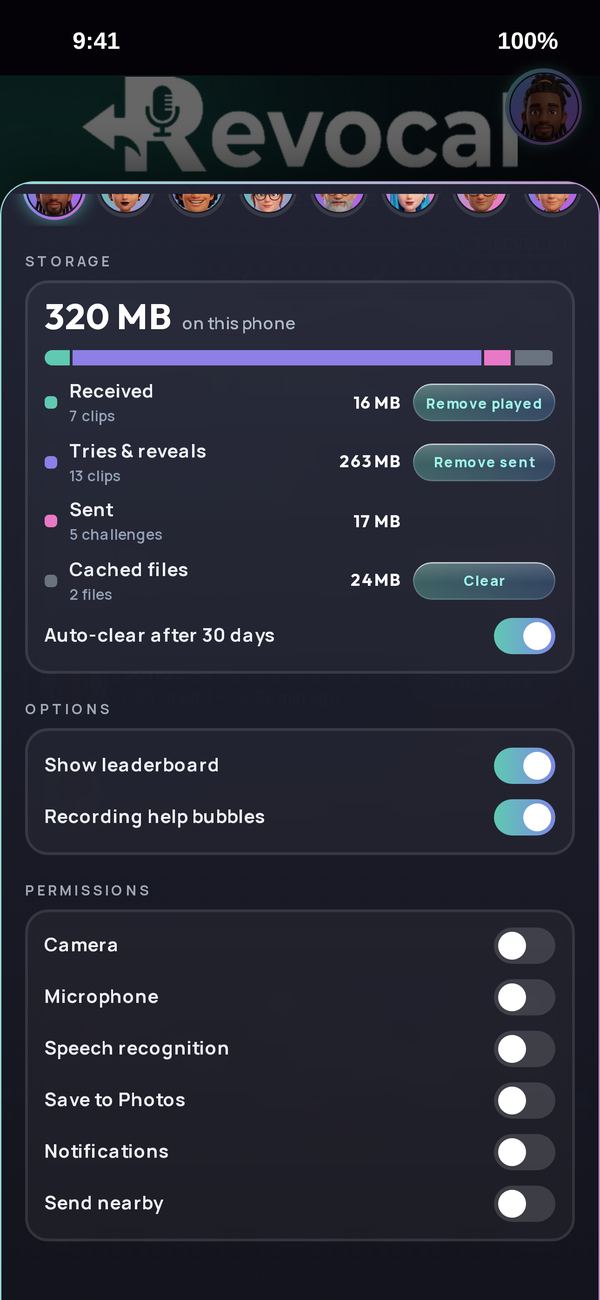 All off on a fresh install. On asks for it, off takes you to Settings.
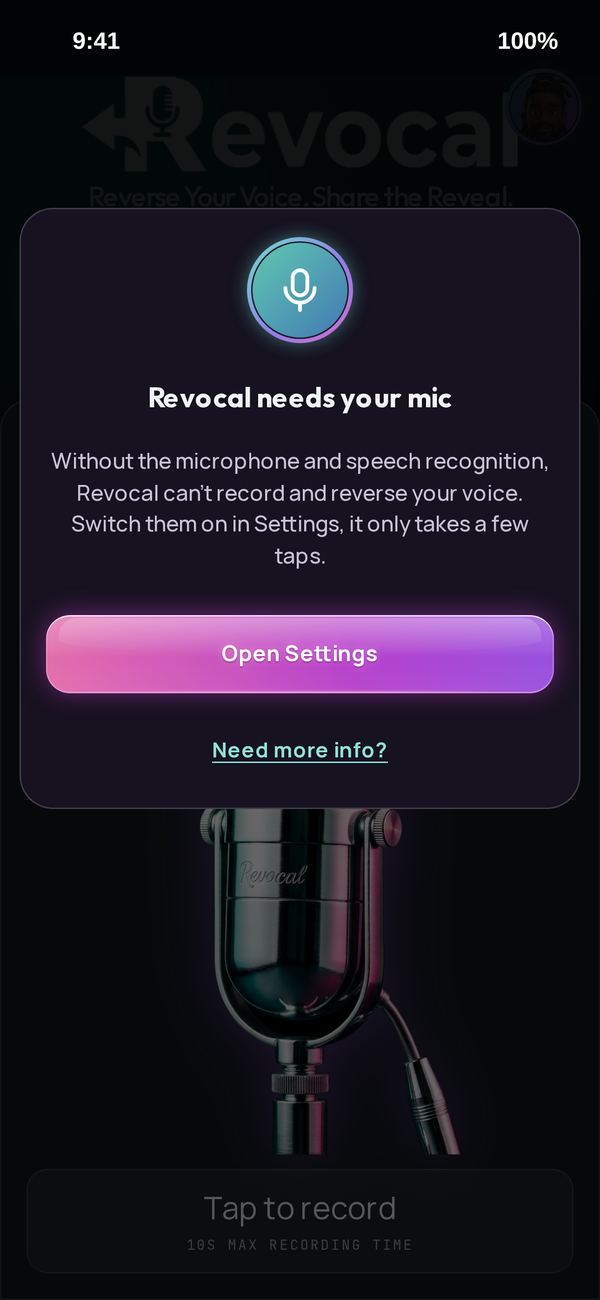 Said no before? Open Settings takes you to the switch. Need more info? brings you to this page.
iPhone: Settings › Apps › Revocal (on older iOS, Settings › Revocal). iPhone only shows each permission question once. If you said no before, this is where you turn it back on.
Android: Settings › Apps › Revocal › Permissions.
More about what happens to your information is in our Privacy Policy. Questions: [email protected].